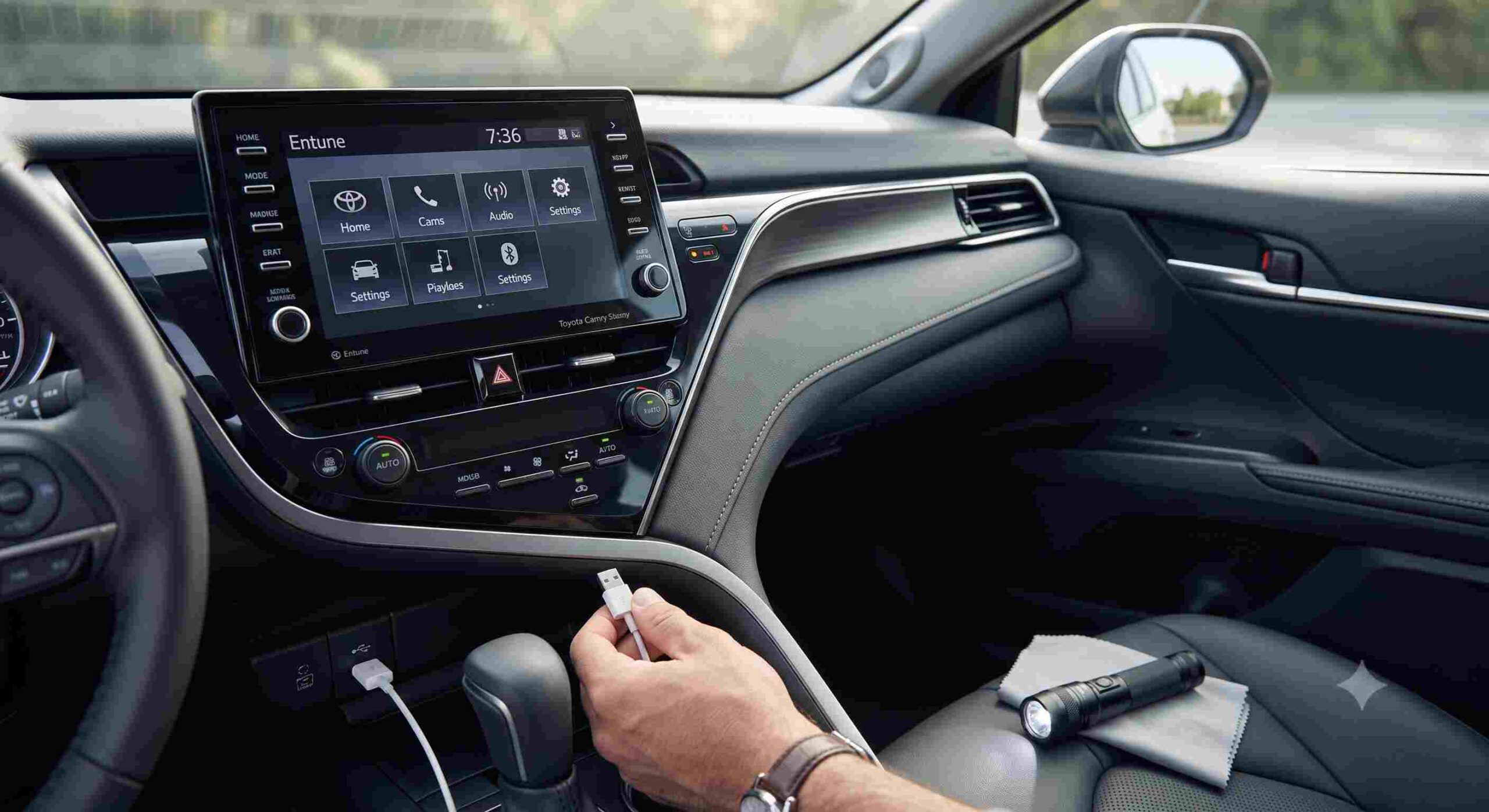
Few things are more frustrating than settling into the driver’s seat for a long commute, plugging in your iPhone, and staring at a blank infotainment screen. Apple CarPlay has fundamentally changed how we interact with our vehicles by bringing navigation, music, and hands-free communication directly to the dashboard. When this vital system fails to launch, it can instantly throw off your entire day. If you find yourself in a situation where your toyota camry carplay usb not working, you are absolutely not alone. Many Camry owners face this exact technical hiccup at some point during their ownership experience.
The good news is that resolving this connectivity issue usually does not require a trip to the dealership or an expensive repair bill. In the vast majority of cases, the problem stems from a simple miscommunication between your smartphone and the vehicle’s hardware. Whether it is a faulty cable, a hidden phone setting, or a temporary software glitch within the Toyota Entune or Audio Multimedia system, the solution is typically something you can handle right in your driveway.
In this comprehensive guide, we will walk you through every possible fix. We will cover how to identify the correct data ports, the importance of using certified cables, step-by-step phone settings adjustments, and how to properly reset your media system. Grab your iPhone, head out to your car, and let us get your dashboard fully connected again.
1. Why Your Toyota Camry CarPlay System Fails to Connect
Before diving into the physical fixes, it helps to understand how the Apple CarPlay ecosystem functions within your Toyota Camry. Apple CarPlay is not just a simple screen mirroring tool. It is a complex software handshake that requires a continuous, high-speed data transfer between your iPhone and the car’s internal computer. If any single variable in this chain is interrupted, the entire system will refuse to launch as a safety precaution.
When your Toyota Camry CarPlay USB is not working, the vehicle is essentially failing to recognize the device as a trusted data source [1]. This can happen because the physical connection is weak, the cable is only designed for transferring power, or the software on either the phone or the car is caught in a glitch loop. By systematically checking the hardware first and moving on to the software settings, you can easily isolate the root cause and restore your digital driving experience.
2. The Hardware Check: Inspecting Cables and Ports
The most common culprit for a failed CarPlay connection is the physical hardware. Drivers often assume that any port or any cord will do the trick, but automotive data transfer requires specific conditions to function correctly.
Use the Correct Data-Enabled USB Port
Modern Toyota Camry models come equipped with multiple USB ports to accommodate the charging needs of all passengers. However, not all of these ports are created equal. On many Camry models (particularly those from the 2018 to 2024 model years), only one specific USB port supports data transfers.
Typically, this data-enabled port is located at the very front of the center console, directly under the climate controls [7]. The ports located inside the center armrest console or facing the rear seats are strictly designated for charging only [1]. If you plug your phone into a charge-only port, your phone battery will increase, but the CarPlay prompt will never trigger. Always ensure you are using the main front port when attempting to establish a wired CarPlay connection.
Swap the Cord for an MFi-Certified Cable
Not all USB cables are wired internally to carry data. Many cheap, aftermarket cables sold at gas stations or convenience stores lack the necessary internal pins to transmit data packets. They will charge your device but fail completely when you try to launch Apple CarPlay.
Furthermore, cables degrade over time. A wire that looks perfectly fine on the outside might have microscopic internal breaks from being bent, pulled, or closed in the center console lid. To rule out the cord, replace your current wire with a brand-new, high-quality data cable. Ideally, you should use an original Apple Lightning or USB-C cable, or one that is strictly labeled as “MFi-Certified” (Made for iPhone). An MFi-certified cable guarantees that the hardware meets Apple’s exact specifications for data transfer and continuous connectivity.
Inspect and Clean the USB Port
If you keep your phone in your pocket, the charging port inevitably collects lint, dust, and microscopic debris. The same applies to the USB port on your Camry’s dashboard, which can accumulate dust from the cabin environment. When debris gets packed into these tiny crevices, it prevents the cable from making a flush, secure connection with the internal metal contacts.
Take a flashlight and carefully inspect both the charging port on the bottom of your iPhone and the USB port on your dashboard. If you see any grayish buildup, it needs to be removed. Turn off your vehicle and your phone. Take a clean, dry wooden or plastic toothpick (never use metal objects like paperclips, as they can short out the pins) and gently scrape out any lint. A quick blast of canned compressed air can also help clear out stubborn dust particles. Once cleaned, try plugging the connection back in.
3. At-A-Glance Troubleshooting Guide
If you are in a rush and need to know exactly what this troubleshooting process entails, use the quick reference table below.
| Troubleshooting Step | Required Tools | Estimated Time | Difficulty Level | Potential Cost |
| Clean the Ports | Flashlight, wooden toothpick, compressed air | 5 Minutes | Beginner | $0 to $5 |
| Replace the Cable | MFi-Certified USB cable | 1 Minute | Beginner | $15 to $25 |
| Update Phone Settings | Your iPhone | 3 Minutes | Beginner | $0 |
| Reset Infotainment | None (Use car dashboard buttons) | 2 Minutes | Beginner | $0 |
4. Adjusting Your iPhone Settings for Seamless CarPlay Integration
If your hardware is completely sound, the next logical step is to dive into your iPhone’s internal settings. Apple has built several security and privacy features into iOS that can inadvertently block CarPlay from launching if they are not configured correctly.
Enable Siri Functionality
One of the most overlooked requirements for Apple CarPlay is that Siri must be enabled on your device [1, 3, 5]. Apple designed the CarPlay interface heavily around hands-free voice commands to keep drivers safe and focused on the road. If Siri is disabled in your settings, CarPlay will completely refuse to initialize.
To fix this, open your iPhone and navigate to Settings > Siri & Search. Ensure that the toggles for “Listen for ‘Hey Siri’,” “Press Side Button for Siri,” and “Allow Siri When Locked” are all turned on. Once these are activated, plug your phone back into the vehicle to see if the connection prompt appears.
Check Screen Time and Privacy Restrictions
Apple’s Screen Time feature is fantastic for managing digital habits, but it can also restrict certain apps from communicating with external devices. If you or a family member accidentally restricted CarPlay, the phone will block the connection natively.
To verify your permissions, navigate to Settings > Screen Time. From there, tap on Content & Privacy Restrictions. If the main toggle is turned on, tap into Allowed Apps and look for CarPlay on the list. Ensure the toggle switch next to CarPlay is flipped to the green (on) position.
The “Forget This Car” Reset Process
Sometimes the digital handshake between your specific phone and your specific car gets corrupted. When the profile data becomes scrambled, the two devices will refuse to talk to each other. The easiest way to fix a corrupted connection profile is to delete it entirely and start from scratch.
Go to your iPhone Settings > General > CarPlay. You should see your Toyota Camry listed under “My Cars.” Tap on your vehicle’s name, and then tap the “Forget This Car” button [3]. This completely erases the saved connection data. After doing this, turn your vehicle off and back on, and plug the USB cable back into your phone. Your Camry should treat the phone like a brand-new device and ask for permission to launch the CarPlay setup wizard.
5. Resetting the Infotainment System and Bluetooth Conflicts
When both the hardware and phone settings check out perfectly, the issue usually lies within the temporary memory of the devices themselves. Just like a sluggish laptop or a frozen application, restarting the hardware can clear out software bugs that are blocking the data transfer.
Perform a System Reboot
Start by executing a hard restart on your iPhone. Turn the device completely off, wait thirty seconds, and power it back up. This clears the phone’s RAM and terminates any background processes that might be interfering with the USB connection.
Next, you need to restart your Toyota Camry’s infotainment system. Simply turning the engine off and on does not always fully reboot the radio, as modern cars keep these systems in a sleep state for faster boot times. To force a hard reset on your Camry’s head unit, press and hold the physical Power/Volume knob on the dashboard for approximately ten to fifteen seconds [1]. The screen will go entirely black, and eventually, the Toyota logo will appear, indicating that the system is performing a complete reboot. Once the system has fully loaded, try connecting your phone again.
Clear Out Bluetooth Conflicts
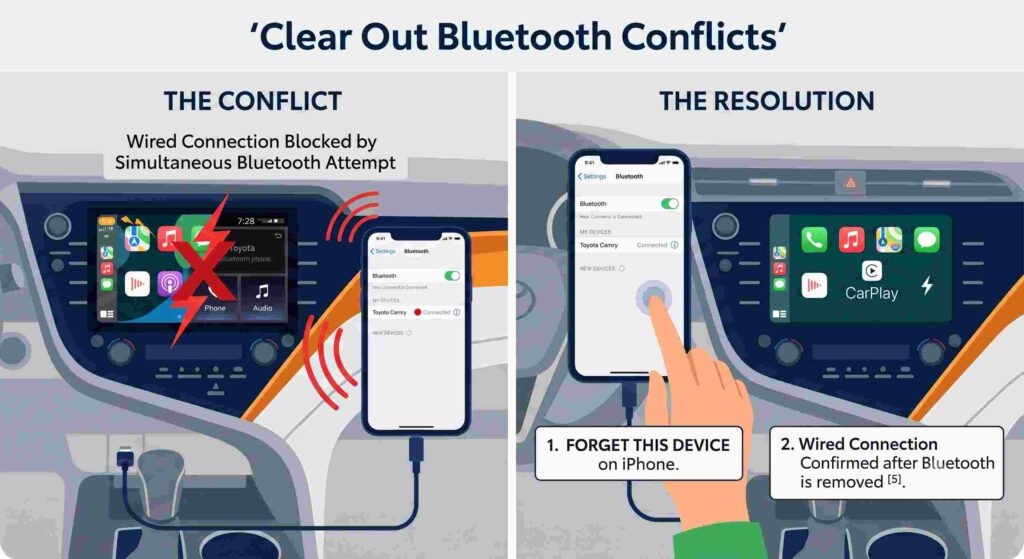
Wired Apple CarPlay overrides standard Bluetooth connections. However, if your phone is aggressively trying to connect to the vehicle via Bluetooth while simultaneously trying to establish a wired CarPlay connection via USB, the conflicting signals can cause the system to crash or fail to launch.
To eliminate this interference, you should delete the Bluetooth pairing. On your iPhone, go to Settings > Bluetooth, find your Toyota Camry on the list, tap the info (i) icon, and select “Forget This Device.” Next, navigate to the Bluetooth settings menu on your Camry’s touchscreen and delete your phone from the vehicle’s memory. Once both devices have forgotten each other, plug your phone in via the USB cable first [5]. Let the wired CarPlay connection establish itself. If you still want Bluetooth functionality for times when you do not plug in, you can safely re-pair the Bluetooth connection afterward.
6. Advanced Diagnostic Steps
If you have tried every step above and your toyota camry carplay usb not working issue persists, you might be dealing with a deeper systemic problem.
First, ensure your iPhone is running the latest version of iOS [1]. Apple frequently releases patches that address connectivity bugs with specific vehicle manufacturers. Go to Settings > General > Software Update and install any pending updates.
Second, check your Toyota for firmware updates. The Entune and Audio Multimedia systems run on software that Toyota occasionally updates to fix bugs and improve stability. Depending on your Camry’s model year, you might be able to download an update directly over a Wi-Fi connection, or you may need to visit a local Toyota dealership to have the service department flash the latest software onto your head unit.
Finally, if the USB port is not charging your phone at all, you might be dealing with a blown fuse. The USB ports are wired into the car’s fuse box, and a power surge can cause the dedicated fuse to pop. Check your Camry’s owner’s manual to locate the interior fuse box (usually located under the steering wheel area) and identify the specific fuse tied to the accessory ports. If the metal filament inside the fuse is broken, replacing it with a new one of the exact same amperage will restore power to the port.
7. Frequently Asked Questions
Why does my CarPlay disconnect randomly while I am driving?
Random disconnections are almost always caused by a physical hardware issue. As the vehicle vibrates over bumps in the road, a worn-out cable or a USB port packed with lint will briefly lose physical contact. Even a millisecond drop in the connection will cause CarPlay to crash. Start by thoroughly cleaning the ports and upgrading to a fresh MFi-certified cable.
Can I upgrade my older Camry to have wireless CarPlay?
Yes. If your Camry only supports wired CarPlay (common in models from 2018 through roughly 2023), you can easily add wireless functionality by purchasing an aftermarket wireless CarPlay adapter [7]. These small dongles plug directly into your car’s data USB port and broadcast a Bluetooth and Wi-Fi signal. Your phone connects to the adapter wirelessly, and the adapter feeds the data into the car just like a wired connection would.
Does it matter if my iPhone is severely outdated?
Yes, it does. Apple CarPlay requires a minimum hardware and software threshold to operate smoothly. If you are using a very old iPhone model that can no longer receive iOS updates, it may struggle to communicate with newer Toyota infotainment systems. Upgrading your iOS to the latest version is a crucial step in maintaining connectivity [1].
Why does my phone say “Accessory Not Supported” when I plug it in?
This error message is Apple’s way of telling you that the cable you are using does not meet their hardware standards. It usually happens when using cheap, unlicensed third-party cables. To resolve this error, switch to an official Apple cable or a certified third-party option.
8. Conclusion
Dealing with a stubborn infotainment system can test your patience, but fixing a situation where your toyota camry carplay usb not working is usually a straightforward process of elimination. By verifying that you are using the correct data port, investing in a high-quality MFi-certified cable, ensuring Siri is active, and occasionally rebooting your devices, you can maintain a seamless connection every time you get behind the wheel.
Safety Tip: Always perform these troubleshooting steps while your vehicle is safely parked in a driveway or parking lot. Never attempt to clean ports, swap cables, or navigate through deep phone settings menus while operating a vehicle on the road. Distracted driving is incredibly dangerous, so get your tech sorted out before you put the car in drive. Safe travels and enjoy the ride!