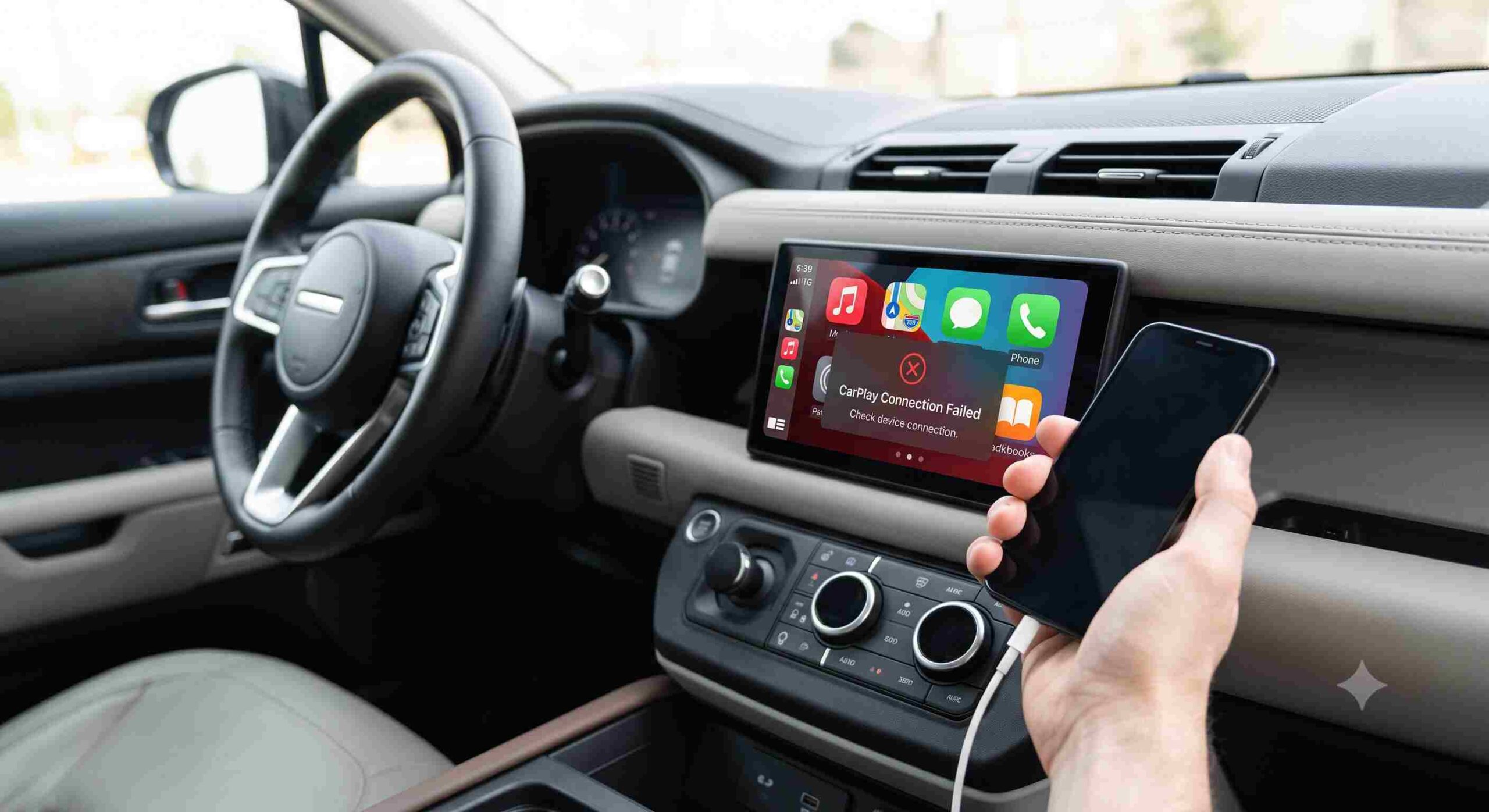
You slide into your driver’s seat, fire up the engine, and wait for that familiar, reassuring chime that means your Apple CarPlay is ready to go. You want to queue up your driving playlist and load your navigation, but instead… nothing. You glance at your phone and see that it is securely connected to your car’s Bluetooth. So why is CarPlay acting like you don’t exist?
This specific issue—where your Bluetooth is connected but CarPlay is not working—is incredibly common, immensely frustrating, and almost always misunderstood.
Most drivers assume that because Bluetooth is working, the connection is solid and CarPlay must be broken. But that’s not how the technology works under the hood. CarPlay uses Bluetooth only for the initial introduction between your phone and your car. After that “hello,” CarPlay requires a fast, stable Wi-Fi connection to transmit all that heavy data (maps, music, app interfaces). When CarPlay fails despite a Bluetooth connection, it almost always means that the critical “Wi-Fi handshake” has failed.
Don’t worry. This isn’t a sign that your expensive head unit is dead or that your iPhone is broken. It’s a software and settings glitch, and we are going to walk you through exactly how to fix it, step by step.
1. Check the Core Settings First
Before you start doing factory resets or buying new cables, we need to ensure the foundational settings that CarPlay requires to operate haven’t been accidentally toggled off.
Enable Both Wi-Fi and Bluetooth
Wireless CarPlay cannot function on Bluetooth alone. It requires both Bluetooth and Wi-Fi to be active simultaneously.
- Action: Swipe down from the top right of your iPhone to open the Control Center, and ensure both the Bluetooth icon (blue) and the Wi-Fi icon (blue) are turned on. Even better, go into Settings > Wi-Fi and ensure it’s toggled on. If you see your car’s network listed, make sure Auto-Join is enabled.
Turn on Siri (CarPlay Won’t Run Without Her)
This is a surprisingly common culprit. Apple requires Siri to be active for CarPlay to function, prioritizing hands-free, voice-activated control for safety. If you recently turned off Siri because she was annoying you, you also turned off CarPlay.
- Action: Go to Settings > Apple Intelligence & Siri (or Siri & Search on older iOS versions) and ensure Listen for ‘Hey Siri’ or Press Side Button for Siri is enabled. Also, make sure Allow Siri When Locked is toggled on.
Check Content & Privacy Restrictions
If CarPlay is missing from your car’s screen entirely, your iPhone might be actively blocking it due to screen time restrictions.
- Action: Go to Settings > Screen Time > Content & Privacy Restrictions. If restrictions are enabled, tap Allowed Apps and make sure the toggle next to CarPlay is green (turned on).
Allow CarPlay While Locked
For convenience, you want CarPlay to start even if your phone is in your pocket and locked.
- Action: Go to Settings > General > CarPlay, select your car, and ensure Allow CarPlay While Locked is turned on.
2. Reset the Connection (Fixing the Handshake)
If your settings are correct but you still have Bluetooth connected but CarPlay not working, you are almost certainly experiencing a handshake failure. The digital keys that your phone and car use to establish the Wi-Fi direct connection have become corrupted.
The most reliable way to fix this is to force them to generate brand new keys by severing the relationship entirely and starting over.
1.Forget the Device on Your iPhone:
Go to Settings > Bluetooth. Find your car’s name in the list, tap the small blue “i” icon next to it, and tap Forget This Device.
Next, go to Settings > General > CarPlay, tap your car’s name, and select Forget This Car.
2.Clear the Phone Profile from Your Car:
This is crucial. Do not skip this step. On your car’s infotainment screen, navigate to the phone, Bluetooth, or device manager settings. Find your iPhone in the list of paired devices and delete/remove the profile completely.
3.Restart Both Devices:
Turn your car engine off completely, open the door (which usually shuts down the radio), and wait 30 seconds. Perform a quick restart on your iPhone as well.
4.Reconnect and Re-pair:
Turn the car back on. On your iPhone, go to Settings > Bluetooth and pair with your car’s system again. For wireless setups, pay close attention to the on-screen prompts on both your phone and the car’s display; you must explicitly agree to “Enable CarPlay” when prompted.
3. How to Fix Wired CarPlay Issues
If you rely on a physical cable and are experiencing connection failures, the troubleshooting shifts slightly.
Ditch the Cheap Cable
This is the number one cause of wired CarPlay failures. Many cheap, gas-station or third-party cords are designed only to supply power. They do not have the internal wiring required for high-speed data transfer.
- Action: Switch to an official Apple cable or a high-quality, MFi-certified (Made for iPhone) replacement.
Check and Clean the Ports
Your iPhone lives in your pocket or purse, which means the charging port is a magnet for lint, dust, and debris. A tiny piece of lint can prevent the cable from making the solid contact required for data transfer, even if it still manages to charge the battery.
- Action: Carefully inspect your iPhone’s charging port. Use a wooden or plastic toothpick (never metal) to gently scoop out any compacted lint. Also, try plugging the cable into a different USB port in your vehicle if you have more than one.
Disable USB Restricted Mode
iPhones have a security feature designed to stop hackers from stealing data through the USB port when the phone is locked. Sometimes, this blocks CarPlay.
- Action: Go to Settings > Face ID & Passcode (or Touch ID), scroll down to the “Allow Access When Locked” section, and ensure the toggle for Accessories (or USB Accessories) is turned ON.
Quick Reference: Troubleshooting Breakdown
Here is a quick overview of what it takes to fix the most common CarPlay connection errors.
| Fix Type | Tools Needed | Est. Time | Difficulty | Most Likely to Fix |
| Settings Refresh | iPhone | 1 minute | Easy | Siri disabled, Screen Time blocks |
| Connection Reset | iPhone & Car System | 3-5 minutes | Medium | “Handshake” failures, corrupted keys |
| Wired Fix | Certified Cable, Toothpick | 2 minutes | Easy | Frayed cords, lint in charging port |
| Network Reset | iPhone | 5 minutes | Medium | Persistent wireless drops, VPN interference |
Frequently Asked Questions
Why does my phone say CarPlay is connected but nothing is on the screen?
This usually points to a software freeze on the car’s end, or a Wi-Fi handshake failure. The car acknowledges the Bluetooth connection, but the heavy data transfer (the screen interface) fails to initialize. Try hard-resetting your car’s infotainment system (often done by holding down the power/volume knob for 10-15 seconds).
Does a VPN interfere with wireless CarPlay?
Yes, absolutely. Wireless CarPlay requires a direct, local Wi-Fi connection between your phone and your car. VPNs actively route your data through external servers, which frequently breaks the local connection CarPlay relies on. Try disabling your VPN while driving.
Why did CarPlay stop working after an iOS update?
iOS updates can sometimes reset permissions or cause minor glitches in how Bluetooth and Wi-Fi profiles are stored. The quickest fix is usually to “Forget This Device” on both your phone and car, and re-pair them from scratch to generate a fresh connection profile.
Conclusion
When your Bluetooth is connected but CarPlay is not working, it is almost never a hardware failure. It is a communication breakdown. By understanding that wireless CarPlay relies heavily on a stable Wi-Fi connection, and that Siri must be enabled for the system to run, you can usually resolve the issue in just a few minutes. Start by verifying your core settings, graduate to a full connection reset if necessary, and never underestimate the power of a clean charging port and a high-quality cable.
Safety Tip: Never attempt to troubleshoot complex infotainment settings or re-pair devices while driving. Always pull over to a safe location, put the vehicle in park, and then address your connection issues.